> ## Documentation Index
> Fetch the complete documentation index at: https://docs.pcb.new/llms.txt
> Use this file to discover all available pages before exploring further.
# Visual Studio Code extension
> Edit Zener files and inspect generated schematics in Visual Studio Code
# Visual Studio Code extension
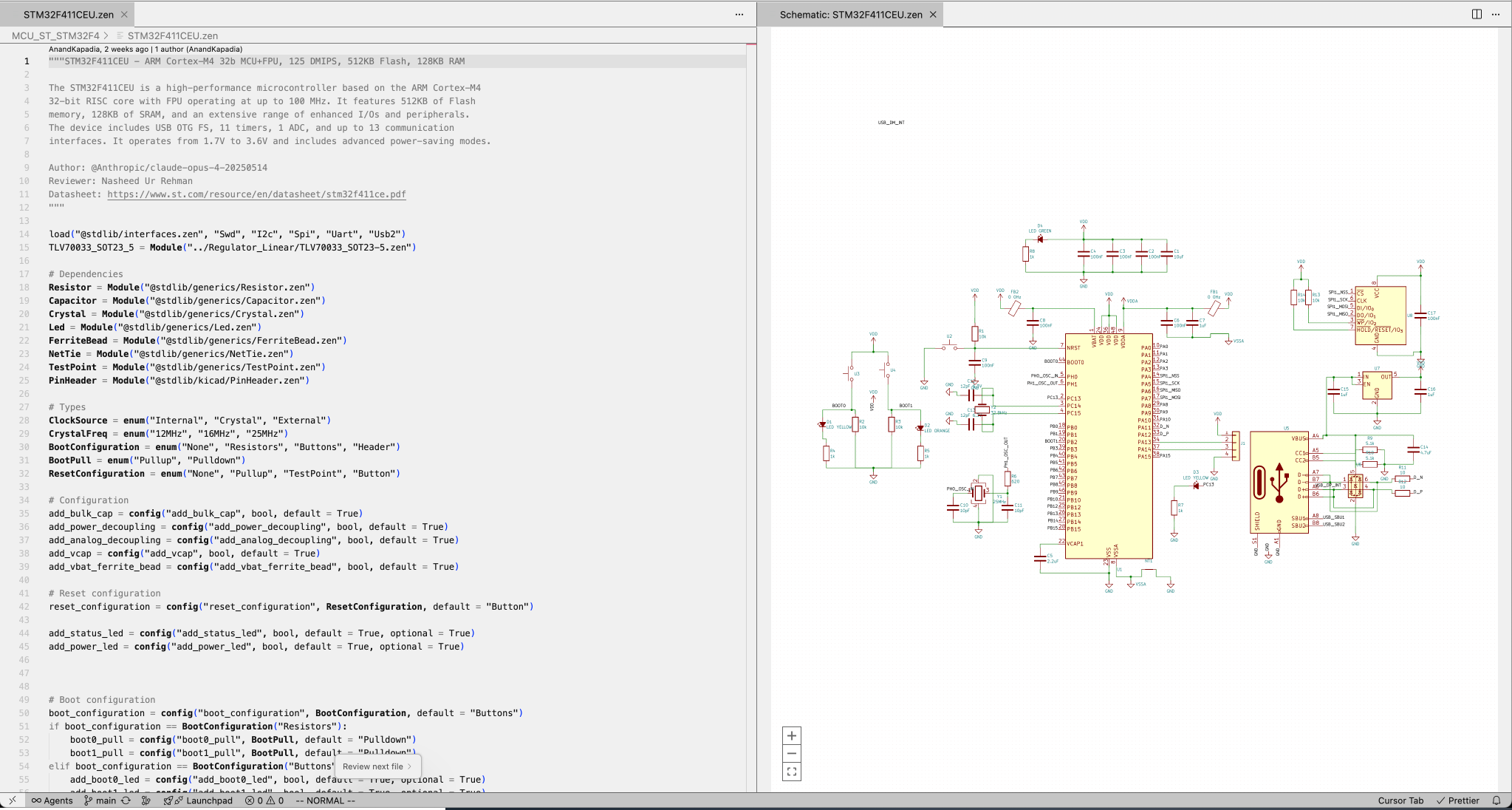
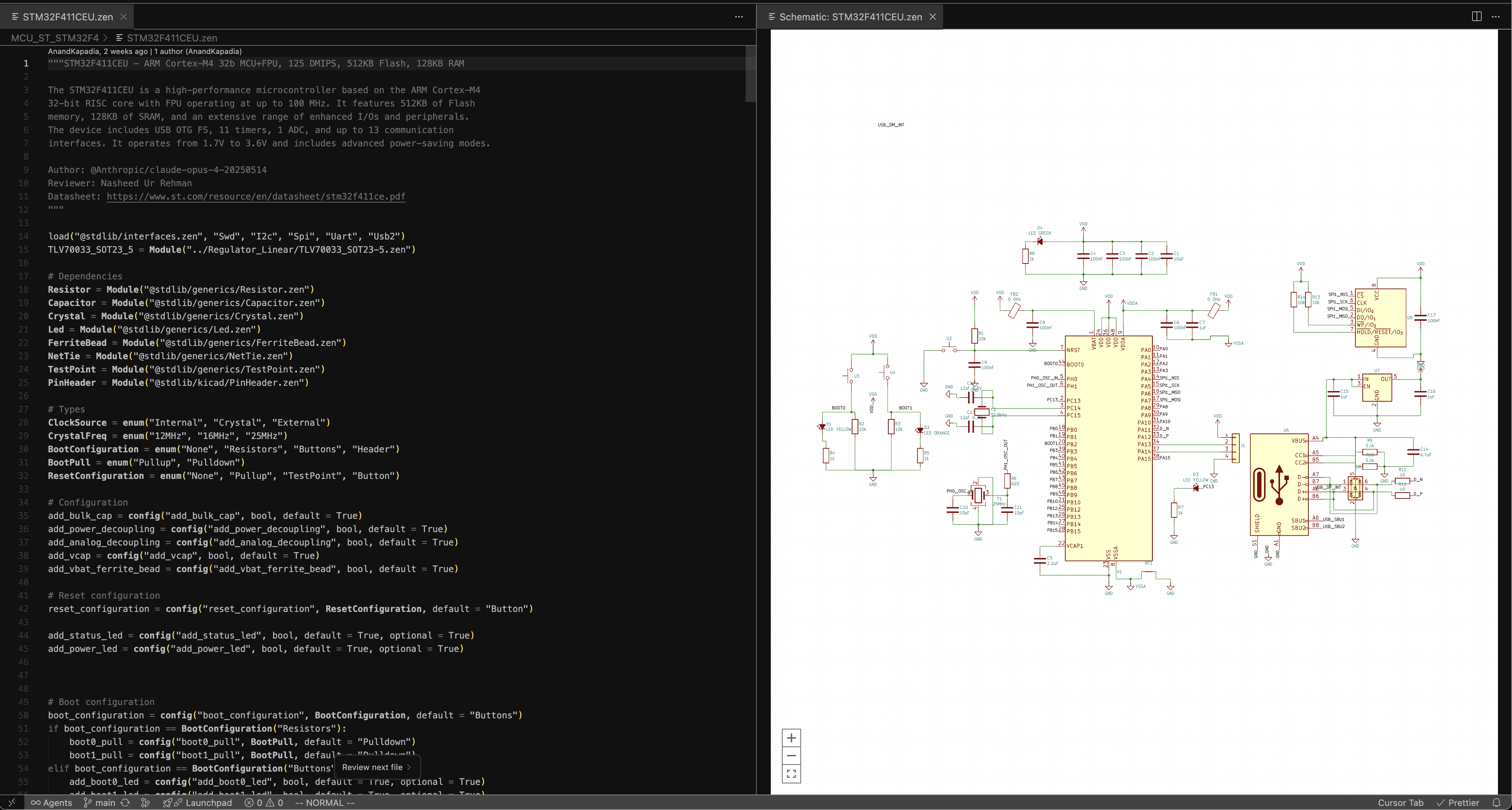
The Zener extension adds language support and schematic previews for `.zen`
files. It provides syntax highlighting, completion, hover information,
diagnostics, definition navigation, and debugger integration.
## Install and open a schematic
1. Install the extension from the [Visual Studio Code Marketplace](https://marketplace.visualstudio.com/items?itemName=diode-inc.zener)
or [Open VSX](https://open-vsx.org/extension/diode-inc/zener).
2. Open a PCB workspace in Visual Studio Code.
3. Open a `.zen` file.
4. Select **Open Schematic** in the editor toolbar.
The preview updates when the source changes. Diagnostics identify syntax,
evaluation, and connection errors in the editor.