> ## Documentation Index
> Fetch the complete documentation index at: https://docs.pcb.new/llms.txt
> Use this file to discover all available pages before exploring further.
# Registry
> Use the web-based registry app to browse, inspect, and work on reusable PCB packages
# Registry App
The [Registry app](https://registry.diode.computer) is the web interface for
managing your part library. Use it when you want to browse the available parts
and schematic modules, or when you want to build new ones.
## Browsing the Registry
The **Parts** section of the registry shows the contents of the registry.
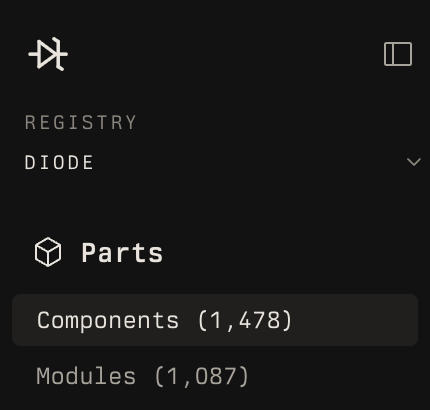 The Parts section has two views: Components and Modules. Use Components when you
are looking for a physical part. Use Modules when you are looking for a reusable
circuit block.
Use the table headers to sort by preferred status, name, description, version,
footprint, manufacturer, or recency where those fields apply.
### Components
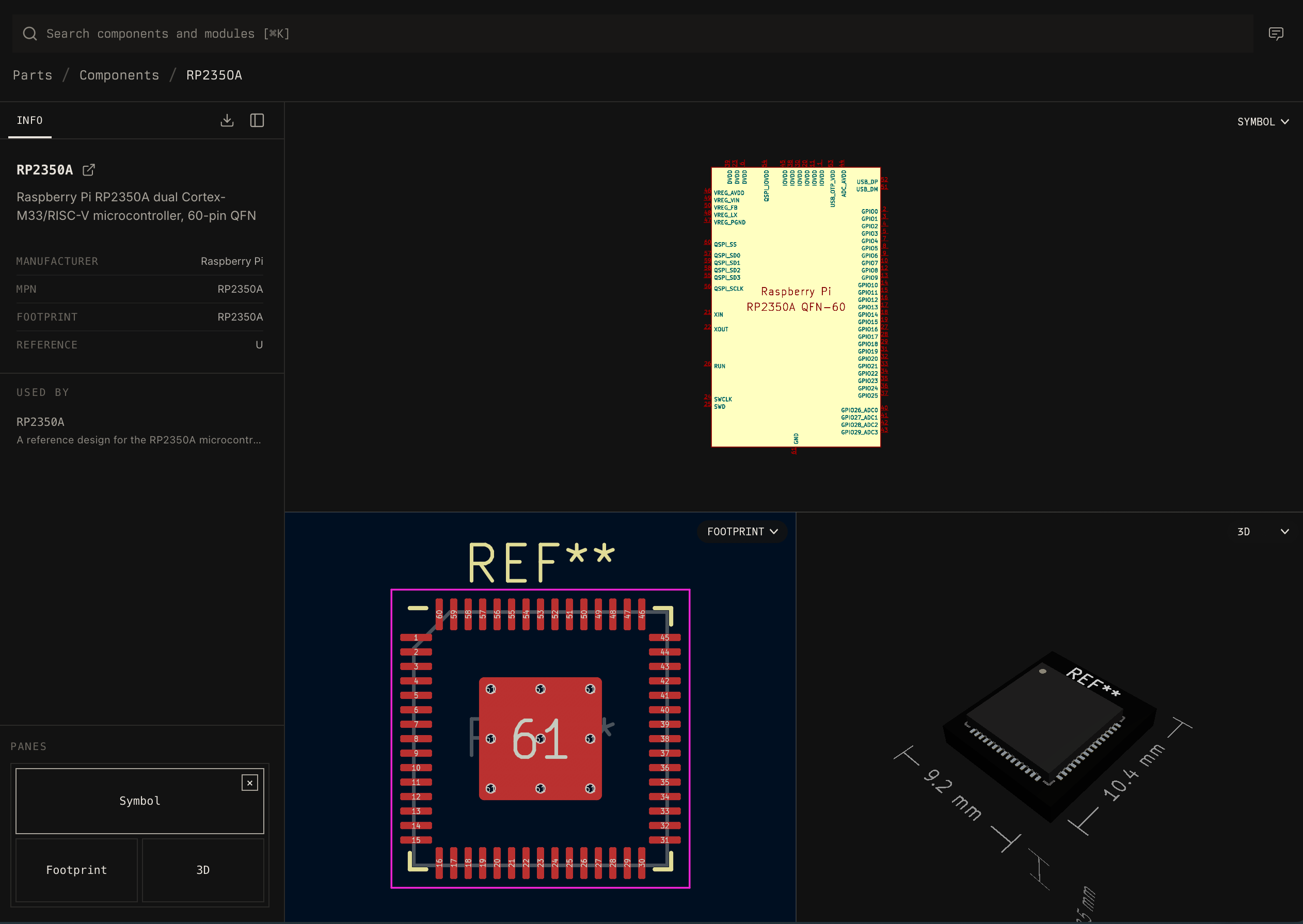
Components are physical parts. A component page can show the part symbol,
footprint, 3D model, manufacturer metadata, MPN, package image, and sourcing
details. This is the view to use before copying a component into a board or
adding it as a dependency.
The Parts section has two views: Components and Modules. Use Components when you
are looking for a physical part. Use Modules when you are looking for a reusable
circuit block.
Use the table headers to sort by preferred status, name, description, version,
footprint, manufacturer, or recency where those fields apply.
### Components
Components are physical parts. A component page can show the part symbol,
footprint, 3D model, manufacturer metadata, MPN, package image, and sourcing
details. This is the view to use before copying a component into a board or
adding it as a dependency.
 ### Modules
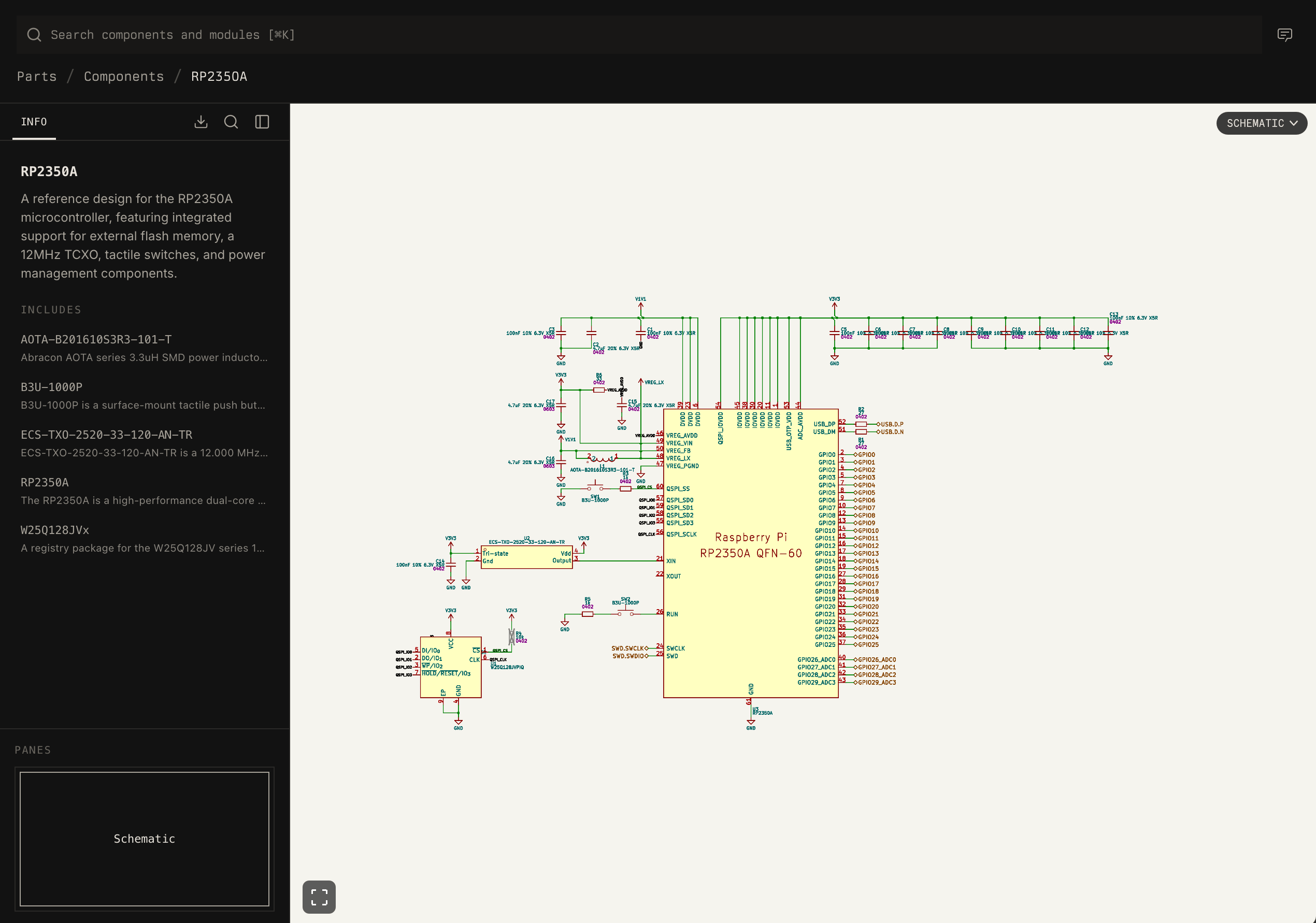
Modules are reusable circuits built from components and other modules. A module
page focuses on the schematic entrypoint and the package relationships that
explain what the module includes.
### Modules
Modules are reusable circuits built from components and other modules. A module
page focuses on the schematic entrypoint and the package relationships that
explain what the module includes.
 ## Search
Use the search launcher at the top of the catalog to search for parts. You can
search by part number or free-form description. For a more interactive search
experience, press the chat button at the top right to ask an agent about
available parts.
## Inspect Packages
Select a package to open the package viewer. The viewer prepares a read-only
sandbox for the selected package and renders the package entrypoint when one is
available.
The package sidebar includes registry metadata and package relationships:
* **Includes**: packages this package depends on.
* **Used by**: packages that depend on this package.
Those relationship links are useful for understanding the blast radius of a
component or module change before editing it.
## Adding Packages
To add or update components in your library, use a sandbox. A sandbox is a
branch of your component library that you can iterate on with an agent before
merging your changes in.
To create a sandbox, press the "+" button next to "Sandboxes" in the left bar.
Then, just ask the agent for what you would like to do. Here's a few ideas to
get you started:
1. Help me find and add a buck converter for a 24 V input, 5 V output, and at
least 2 A load current.
2. Let's add `TPSM86638RCGR` to the registry.
3. Rearrange the `TCAN3403DRQ1` symbol into multiple units so the CAN bus pins,
logic pins, and power pins can be placed separately.
## Search
Use the search launcher at the top of the catalog to search for parts. You can
search by part number or free-form description. For a more interactive search
experience, press the chat button at the top right to ask an agent about
available parts.
## Inspect Packages
Select a package to open the package viewer. The viewer prepares a read-only
sandbox for the selected package and renders the package entrypoint when one is
available.
The package sidebar includes registry metadata and package relationships:
* **Includes**: packages this package depends on.
* **Used by**: packages that depend on this package.
Those relationship links are useful for understanding the blast radius of a
component or module change before editing it.
## Adding Packages
To add or update components in your library, use a sandbox. A sandbox is a
branch of your component library that you can iterate on with an agent before
merging your changes in.
To create a sandbox, press the "+" button next to "Sandboxes" in the left bar.
Then, just ask the agent for what you would like to do. Here's a few ideas to
get you started:
1. Help me find and add a buck converter for a 24 V input, 5 V output, and at
least 2 A load current.
2. Let's add `TPSM86638RCGR` to the registry.
3. Rearrange the `TCAN3403DRQ1` symbol into multiple units so the CAN bus pins,
logic pins, and power pins can be placed separately.